Password Manager

1Password Setup Guide

A beautifully designed password manager with best-in-class family sharing and breach monitoring.

Visit 1Password →
Why we recommend this

1Password combines an intuitive interface with genuinely useful features like Watchtower breach alerts and Travel Mode, making it especially well suited to families who want strong security without a learning curve. It's a favorite among Apple households in particular.

Price
$2.99/mo individual, $4.99/mo families
Platform
All
Best For
Apple households, families
Difficulty
Easy

Setup Guide

1

Start your free 14-day trial

Go to 1password.com, click “Try free,” and create an account. Download your Emergency Kit PDF immediately — this is critical, so print it and store it somewhere safe.
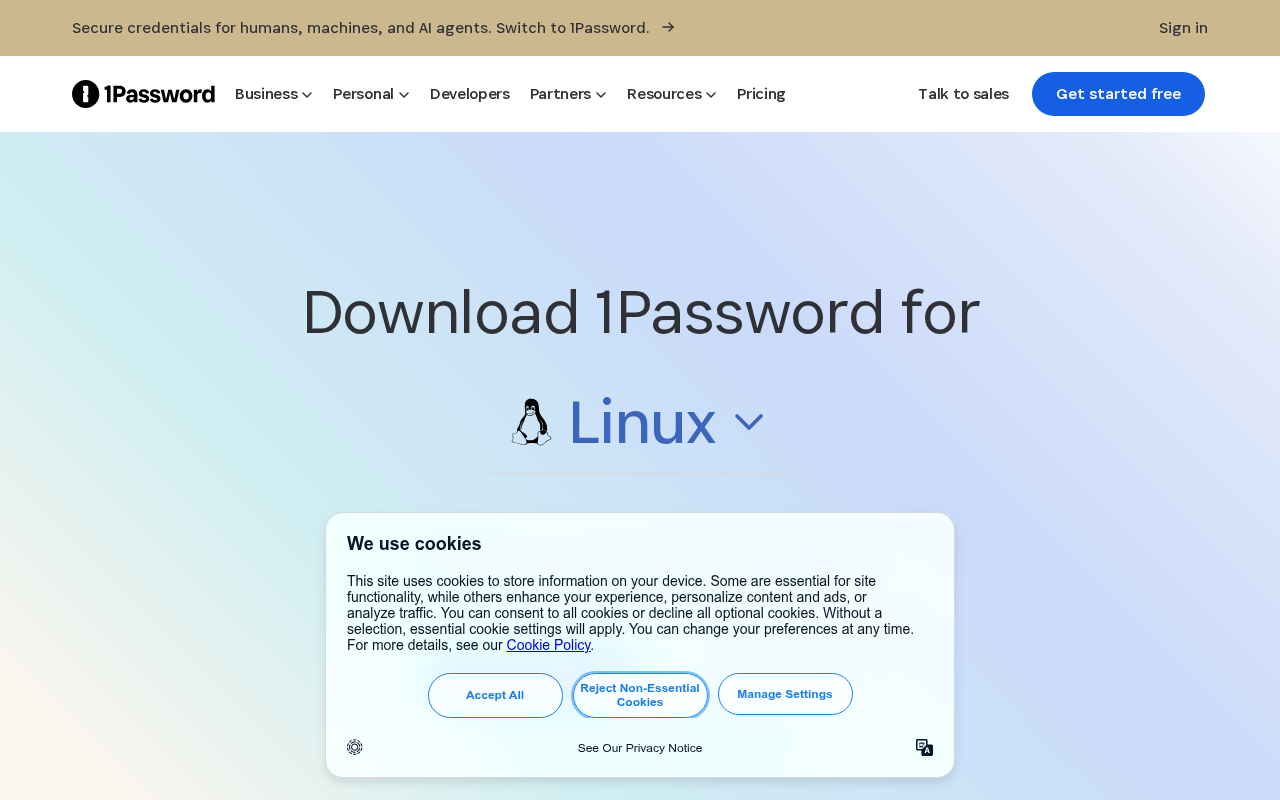
Step 2 — 1Password app available across device icons
3

Set up the browser extension

This enables auto-fill on every site you visit. Click the extension icon in your browser toolbar and sign in with your account.
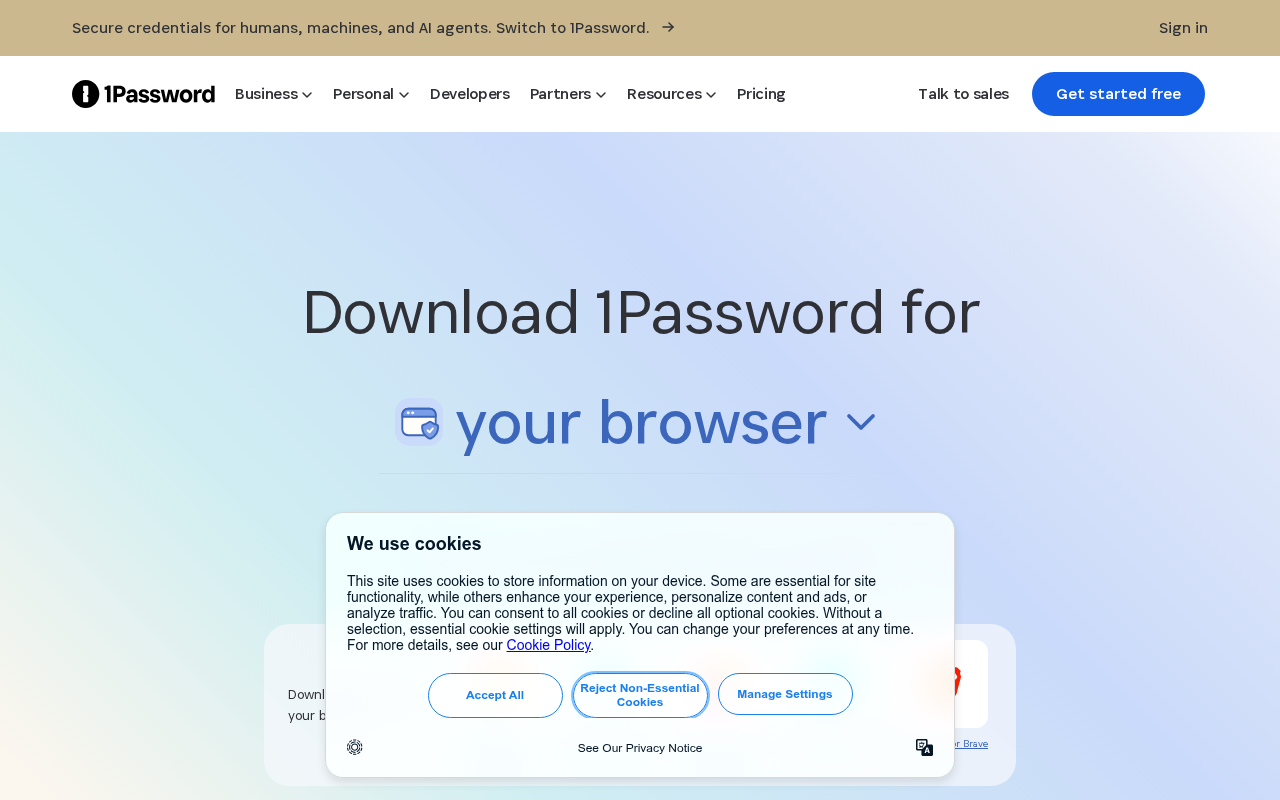
Step 3 — 1Password browser extension sign-in screen
4

Add your first login

Visit a site you use regularly and let 1Password prompt you to save the login when you sign in, or add one manually using the + button.

5

Set up Watchtower

Open Watchtower in the app to see weak, reused, or breached passwords. Fix the items flagged in red first, since those pose the highest risk.
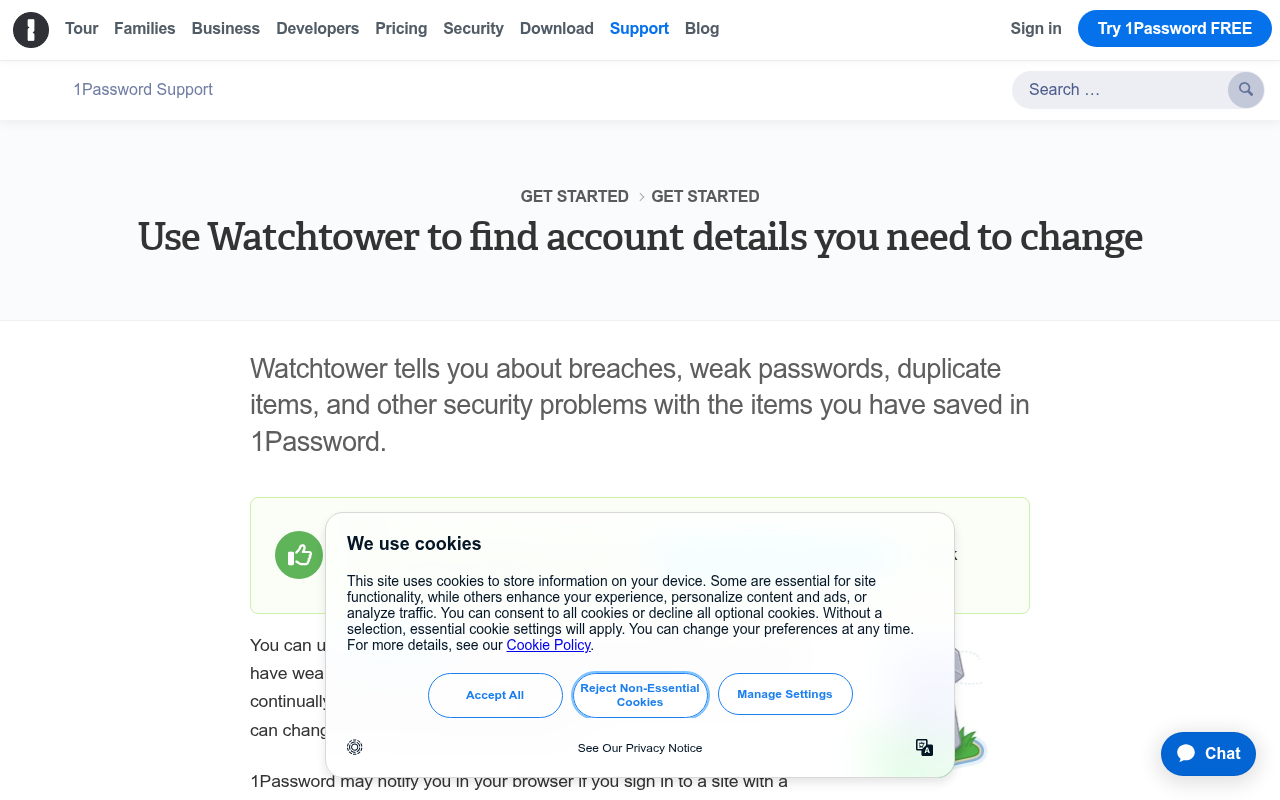
Step 5 — Watchtower dashboard flagging weak and breached passwords
6

Create a Family account

Invite family members by email and create shared vaults for household passwords like WiFi, streaming services, and insurance logins.
Step 6 — 1Password Families invite and shared vault screen
7

Enable Travel Mode

Before international travel, log in at 1password.com and turn on Travel Mode to temporarily hide sensitive vaults at border crossings.
Step 7 — Travel Mode toggle in 1Password account settings

Do's and Don'ts

Do

  • Print your Emergency Kit and store it physically
  • Use Watchtower weekly to check for breached passwords
  • Set up a shared family vault for household items
  • Enable biometrics on mobile
  • Use the built-in password generator

Don't

  • Don't skip the Emergency Kit — you'll need it if you lose access
  • Don't share your Secret Key with anyone
  • Don't use the same password across sites
  • Don't save the Emergency Kit only on your computer

Pro Tips

Pro Tips

  • 1Password's Travel Mode is unique and invaluable for international travel.
  • The Watchtower feature proactively alerts you to breaches as they happen.
  • 1Password integrates with Apple's Passkey standard for passwordless login.
  • iPhone users: enable 1Password as the default AutoFill provider in Settings > Passwords > Password Options.

Frequently Asked Questions

What is the Emergency Kit?
A PDF containing your account email, Secret Key, and setup QR code. You need it to set up new devices, so keep it safe.
Can my family share logins?
Yes — the Families plan ($4.99/mo) supports 5 family members and shared vaults.
What is the Secret Key?
A 34-character code unique to your account that encrypts your data. 1Password cannot access your data without it.
Is 1Password better than Bitwarden?
1Password has a more polished interface and extra features; Bitwarden is free and open source. Both are excellent choices.
What happens if 1Password shuts down?
Export your vault regularly from the app to a 1PUX or CSV file as a backup.

Resources

Something wrong? Just reach out.

Dire situation, confused, not sure where to start — send us a note. No consulting pitch, no sales call. We read every message and point you in the right direction.

Real people, real responses No pitch, no upsell Free, always
Send us a note →